App Lineage
What is App Lineage?
App Lineage is functionality that allows Dais users to manage app development cycles all from within the Dais platform. Creators and app owners are able to develop, test, and deploy their apps to production with easy promote and publish actions. We call this the alpha-beta-gamma (⍺-β-𝛾) development process.
Why Use App Lineage?
With App Lineage, your applications exist in three environments:
- Alpha for app creation & development
- Beta for app preview & user acceptance testing
- Gamma for production to showcase and use your released app versions
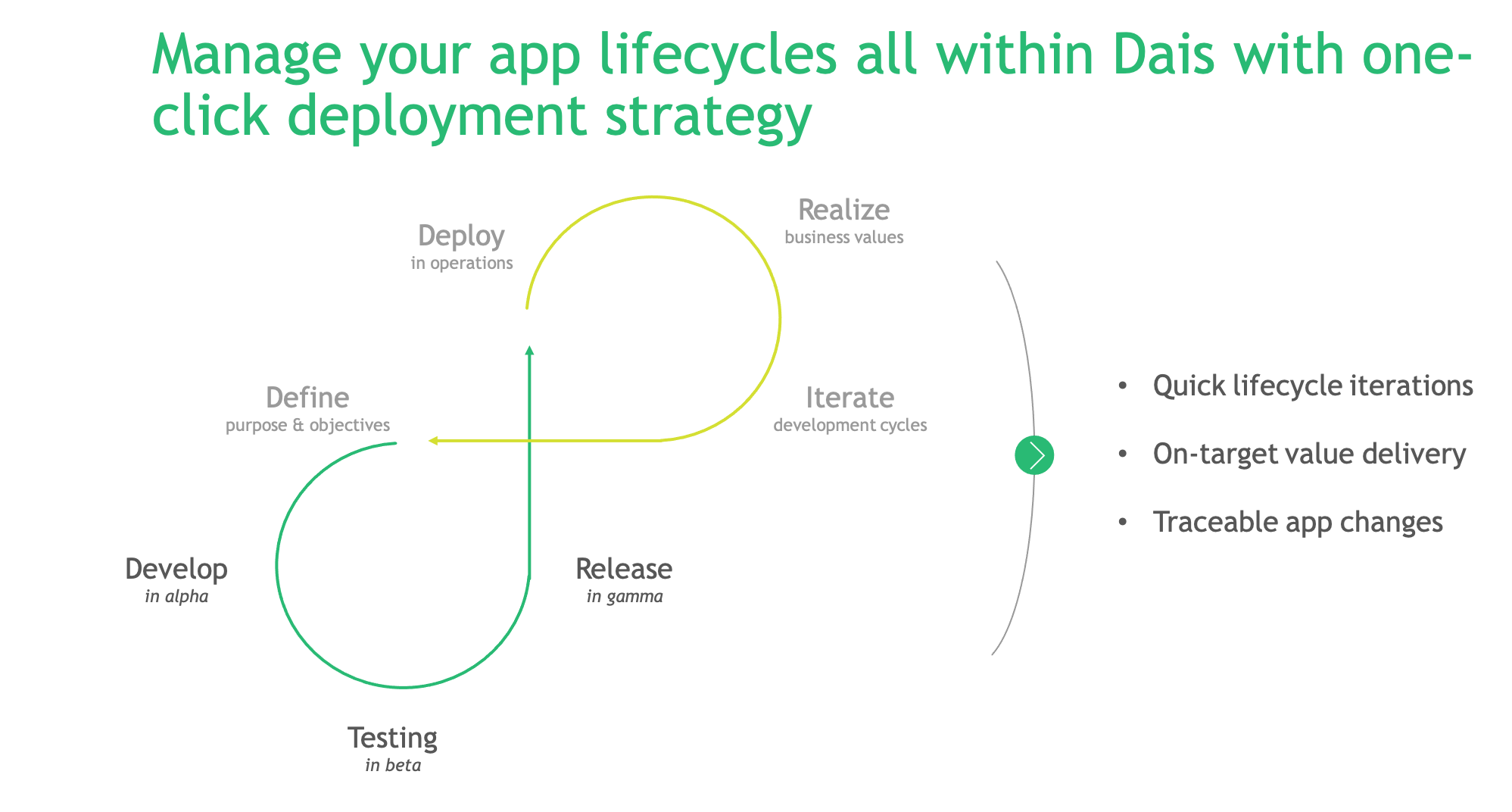
These three distinctive environments map to the traditional CI/CD process, allowing creators to develop and test, while seamlessly allowing consumers to use released apps in production. Team members and stakeholders can easily collaborate and have a clear separation of responsibilities throughout the process. App lineage also enables restrictive access based on user roles; the ⍺-β-𝛾 flow actions are only accessible to creators and app owners, eliminating any potential confusion for consumers.
In addition, there is still one centralized place to view and manage app files, containers, and routes across different environments. Given role-based access, you can use UI selectors to view environment-specific resources. The interface was designed in a user-friendly way to help you easily identify and navigate across different environments.
Standard App Lineage Workflow
The standard workflow is used for apps in production portals. Apps used for case work should be in a production portal and in this case the standard workflow applies. A simplified workflow is used in the Creator environment. See the section Simplified App Lineage Workflow further down for more information.
The Alpha-Beta-Gamma Development Process
The Alpha Environment
App creation starts in the Alpha environment. This is where you develop your app, structure the UI and deploy model code.
- As before, new apps are created by clicking on the "Create New" button. Newly created apps will automatically have App Lineage enabled. Older apps will not automatically be converted to use the App Lineage functionality.
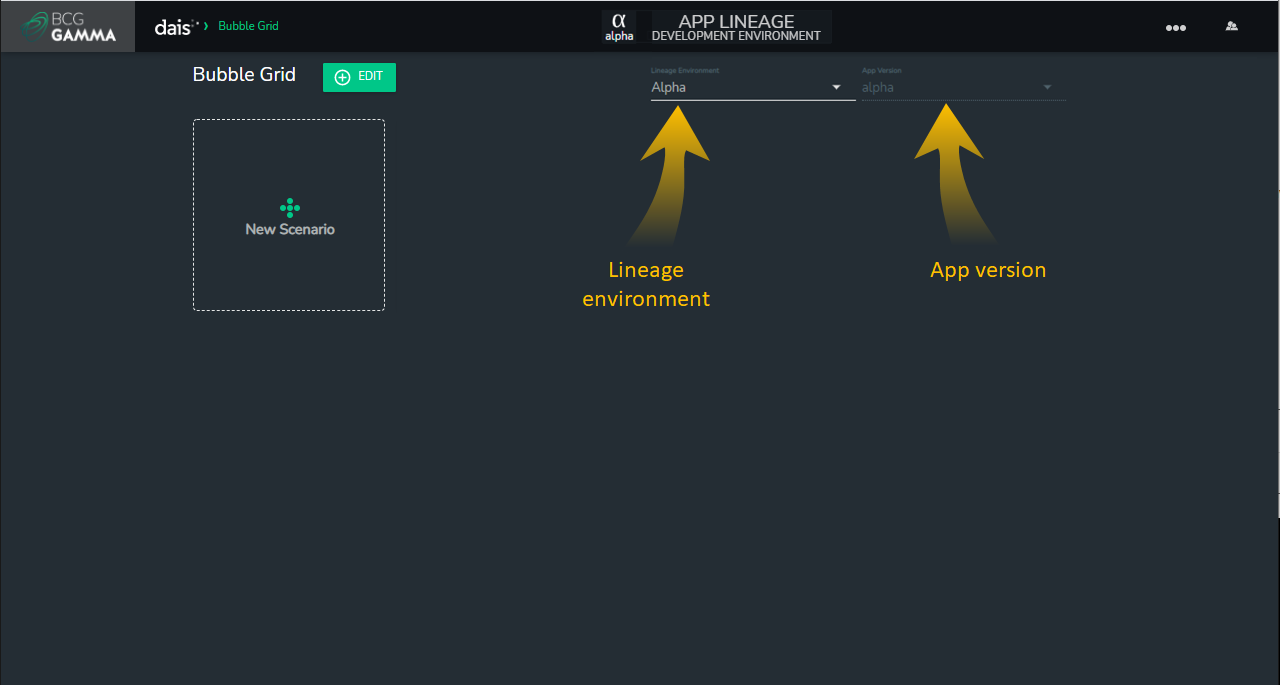
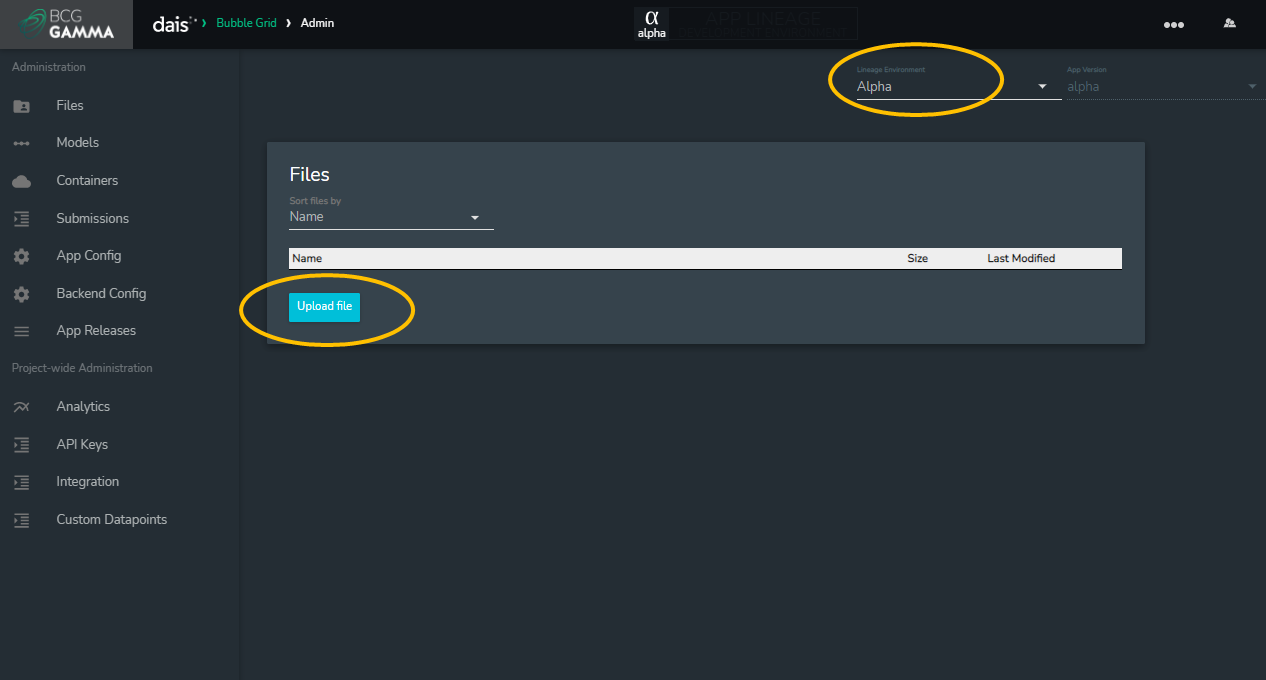
- Apps are created in the Alpha environment. The app banner indicates the current environment. The Lineage Environment selector and App Version Selector are both set to Alpha on app creation.
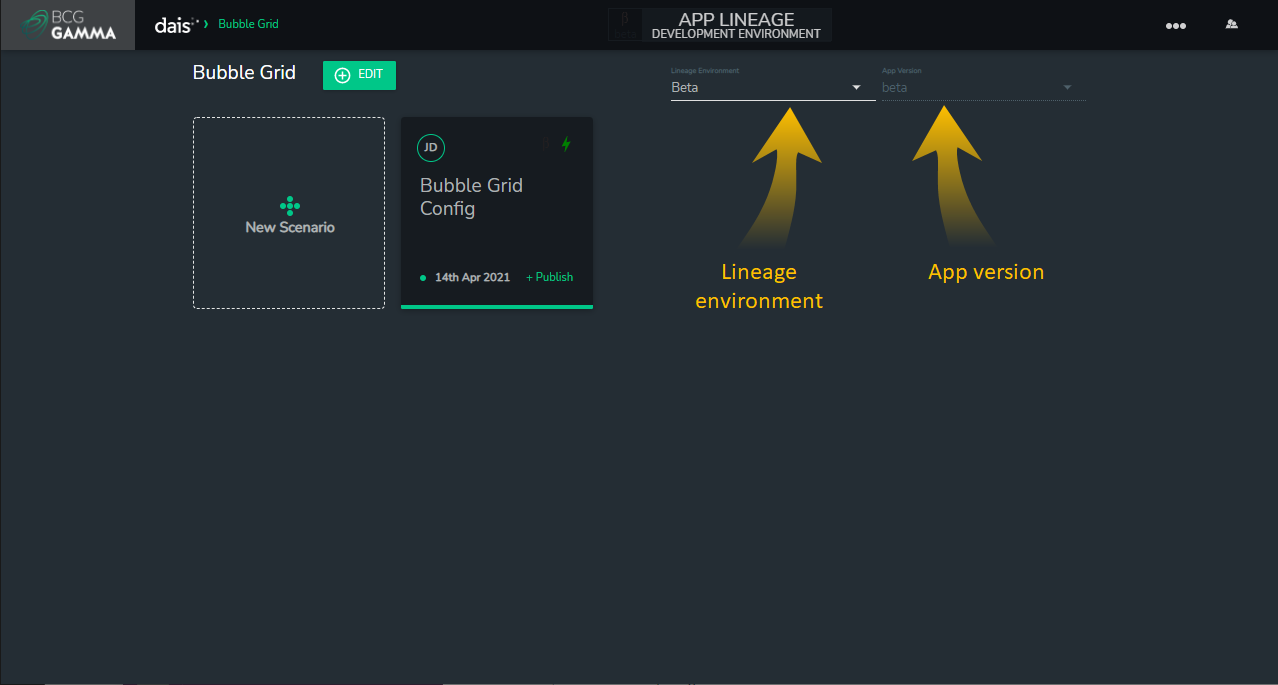
- The Lineage Environment selector allows switching between the Alpha and Beta environments. Gamma will become accessible once the app is published to Gamma.
- The App Version selector allows selection of released versions in Gamma, and will always be greyed out and set to alpha in the Alpha environment, as app versions only apply in the Gamma environment.
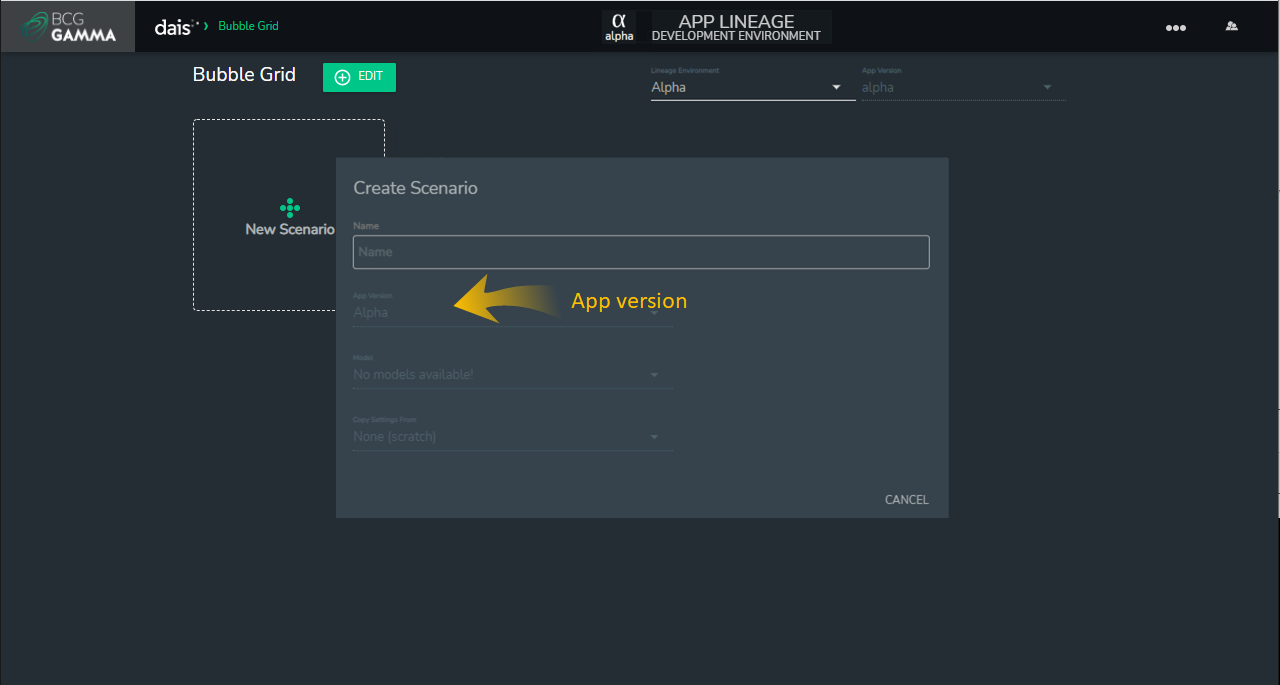
- As before, creators can create new scenarios. For newly created scenarios in the Alpha environment, the "App Version" will be disabled and default to Alpha.
- Creators can view Alpha scenarios in the Alpha environment. The "⍺" icon indicates the Alpha status of a scenario
- As before, Scenario Groups can be created to organize scenarios. Note that scenario groups are shared across all environments, so they are best defined for use in the Gamma environment.
- Please note that editing is only enabled in the Alpha environment. Users can activate the editing mode in the Beta environment for debugging purposes, but edits cannot be saved. Gamma is entirely non-editable.
The Beta Environment
The scenarios in Beta environment can be used for app preview and User Acceptance Testing. While waiting for the feedback, creators can continue to work independently on Alpha scenarios.
When an app is ready for preview and testing, creators can choose the scenario that should be transferred to the Beta environment and click on Promote.
- The chosen scenario will be copied and promoted to Beta. Note that promoting a scenario from Alpha to Beta entirely wipes all scenarios in Beta. On promotion, all existing data, model inputs & outputs, UI components, links, and metadata will be copied from the Alpha scenario and made available as one single new scenario called
defaultScenarioin Beta. - To keep track of the Alpha scenario that was promoted to Beta, we recommend renaming
defaultScenarioto have the same name as the scenario promoted from Alpha. - New scenarios can be created in Beta and the
defaultScenariois used as the template for these new scenarios. This means that new scenarios are initially populated with values from thedefaultScenario. - On promotion, all files in Alpha file space will be copied to the Beta environment. Shipping files with an integration service to either Alpha or Beta is also allowed.
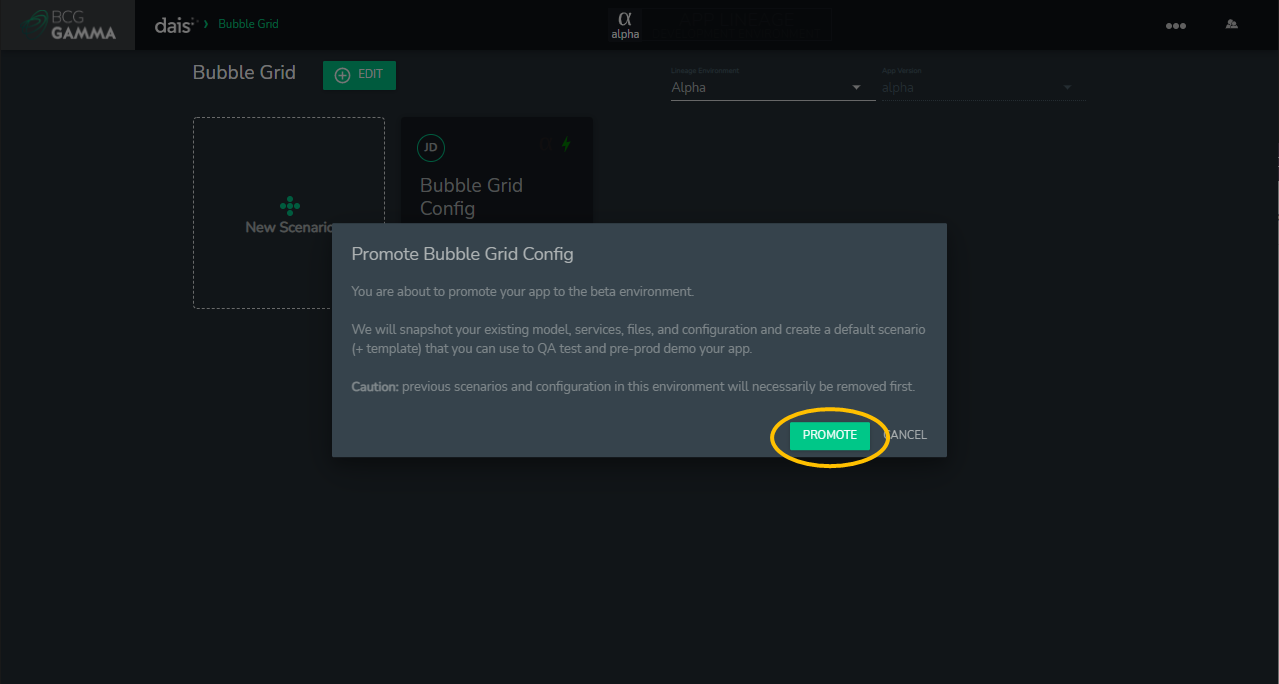
- After promotion, creators are automatically taken to the Beta environment. The Lineage Environment selector is set to Beta and the App Version selector is disabled and defaulted to be beta.
The Gamma Environment
Scenarios in the Gamma environment are targeted at final app consumers.
When an app is ready to release and deploy, creators should click +Publish to publish the app into Gamma environment.
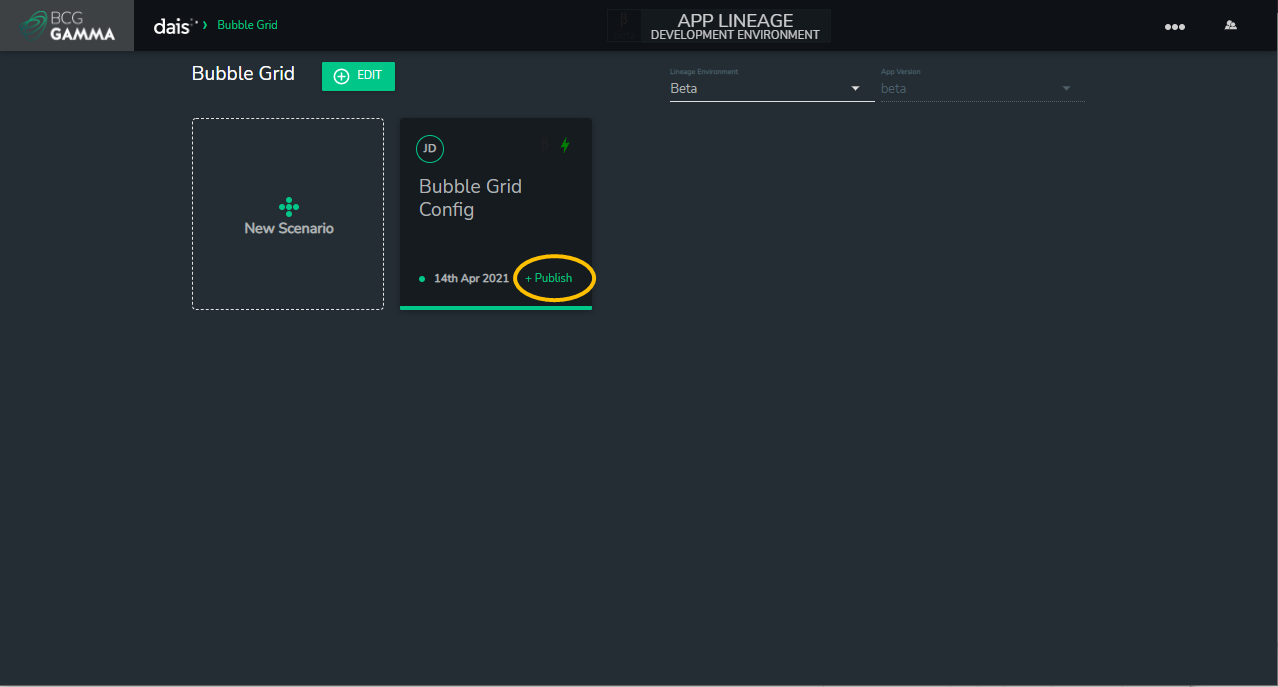
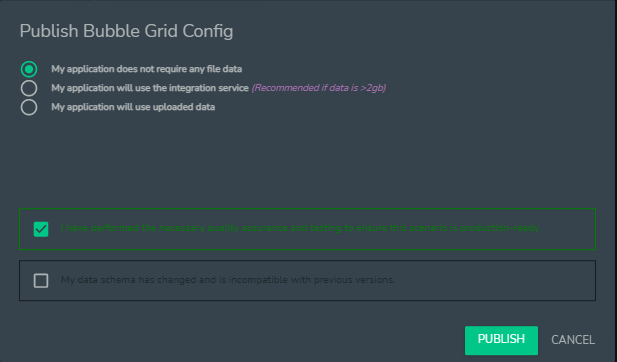
Data files used by beta scenarios are not automatically transferred to the Gamma environment. The user can control data in the Gamma environment by choosing the appropriate options in the modal that pops up when +Publish is clicked. There are three options.
Options for Managing Data when Publishing to Gamma
Option 1: The scenario does not require upload of additional data.
This option does not mean that the scenario in Gamma does not use any files. The files may already be in the Gamma environment and a data refresh may not be required.
- Choose the first option "My application does not require any file data"
- After checking that your app is in good working order, tick the box "I have performed the necessary quality assurance and testing to ensure this scenario is production-ready"
- Click the Publish button to execute the publishing process.
Option 2: The app uses the integration service
The integration API allows data to be uploaded with a POST request. To use the integration service you need:
- A working API key
- Named resources in the app
- A mapping of resource names to a storage location in Dais
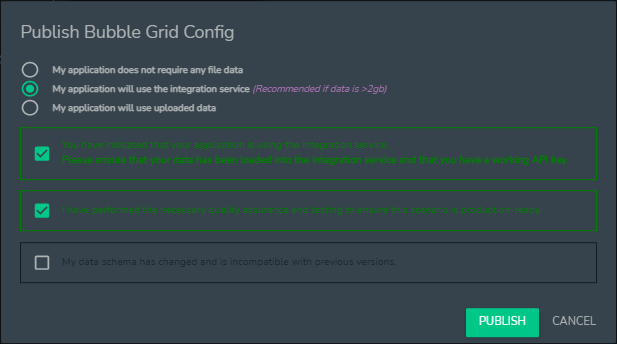
- If you are using the integration service, choose the second option "My application will use the integration service".
- Confirm that the new data set has been uploaded via the integration service and tick the appropriate box "Please ensure that your data has been loaded into the integration service and that you have a working API key".
- After checking that your app is in good working order, tick the box "I have performed the necessary quality assurance and testing to ensure this scenario is production-ready".
- If the data schema has breaking changes and is incompatible with previous versions, please click the bottom checkbox. This will lead to a major bump in the semantic app version. An example of breaking schema change would be a change in the structure of sqlite database schema that makes the app to error out.
- Click the Publish button to execute the publishing process.
Option 3: The scenario to be published to Gamma needs new data
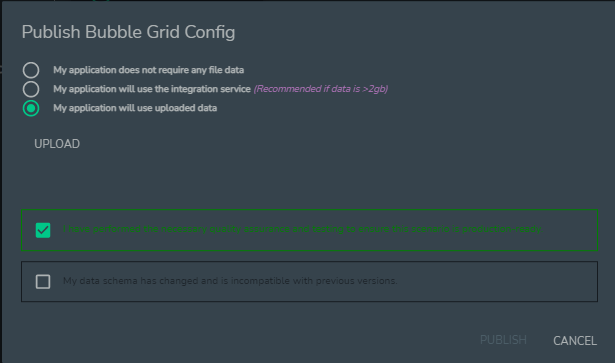
- If your app requires new data to be uploaded, choose the third option "My application will use uploaded data".
- An "Upload" button will appear. Click on the button and browse to .zip file that contains the new data. The directory structure should match that expected by the app.
- After checking that your app is in good working order, tick the box "I have performed the necessary quality assurance and testing to ensure this scenario is production-ready".
- If the data schema has breaking changes and is incompatible with previous versions, click the bottom checkbox. This will lead to a major bump in the semantic app version. An example of breaking schema change would be a change in the structure of sqlite database schema that makes the app to error out.
- Click the Publish button to execute the publishing process.
You can new switch to the Gamma environment to create scenarios that can be showcased to app consumers.
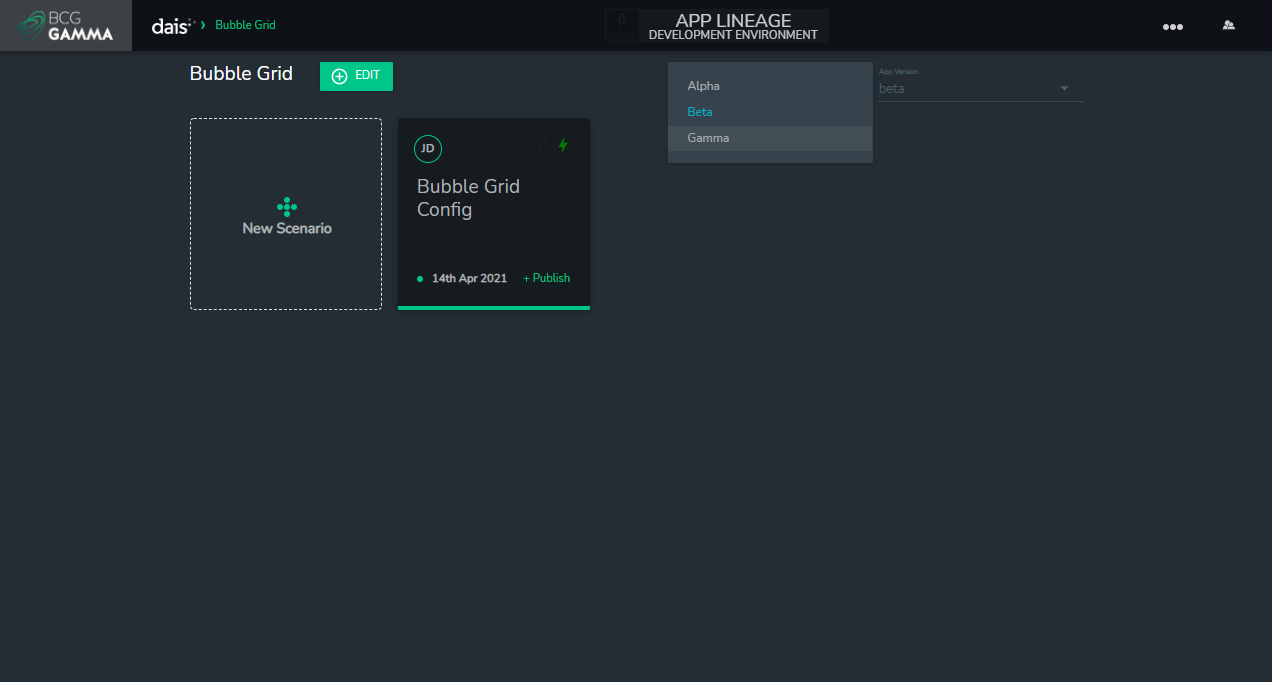
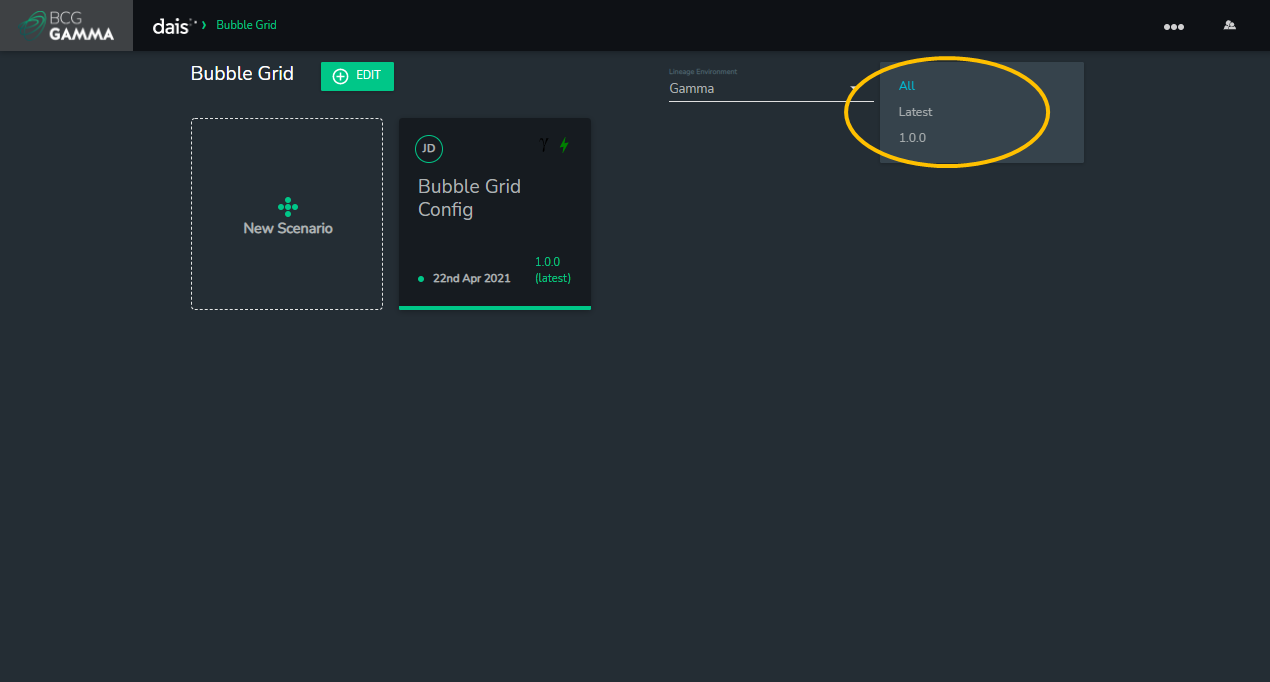
When the Gamma environment is accessed for the first time, no scenarios will be present. Unlike the promote step from Alpha to Beta, a default scenario is not created when publishing to Gamma. On publishing, all content from the datastores, UI components, links, and metadata are copied from the Beta scenario and made available in the Gamma environment as an App version. When creating a new scenario in Gamma, the preferred app version needs to be specified.
The App Version selector can be used to filter scenarios based on the version from which they were built.
Simplified App Lineage Workflow
Apps created in the Creator environment use the simplified workflow.
In the simplified workflow, beta testing and the promote step is eliminated. Scenarios are published directly from Alpha to Gamma. This simplified approach offers the benefit of having separate environments for app building and showcasing. One ready-to-showcase app version can be retained in the Gamma environment while app development can occur independently in the Alpha environment.
- App creation starts in the Alpha environment. This is where you develop your app, structure the UI and deploy model code.
- As before, new apps are created by clicking on the "Create New" button. Newly created apps will automatically have App Lineage enabled. Older apps will not automatically be converted to use the App Lineage functionality.
- Apps are created in the Alpha environment. The app banner indicates the current environment. The Lineage Environment selector and App Version Selector are both set to Alpha on app creation.
- The Lineage Environment selector allows switching between the environments. Gamma will become accessible once the app is published to Gamma.
- When your scenario is ready for release, click on the +Publish icon to publish your scenario directly from Alpha to Gamma.
- Click the checkbox to continue. After publishing, you will be directed to Gamma environment. In this simplified workflow, a Gamma scenario called
defaultScenariois created on publishing. It is recommended that this scenario be renamed to match the name of the scenario promoted from Alpha. This Gamma scenario is essentially a frozen snapshot of the published Alpha scenario, with the same app functionalities and is not editable. - Please note that publishing wipes all scenarios in Gamma and replaces it with a single, newly-published
defaultScenario. - Data can be uploaded to either the Alpha or Gamma environment, but not to both at the same time.
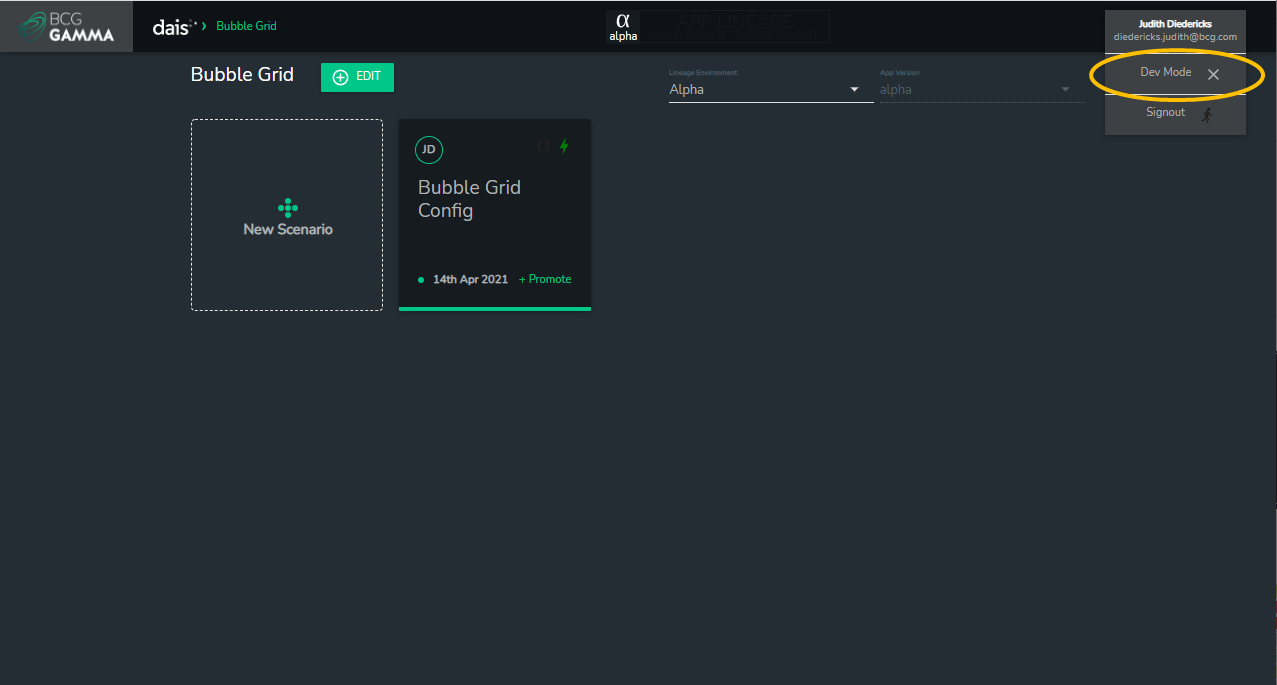
- To hide the App Lineage banners and icons and prevent confusion, click on the ellipses and choose to disable "Dev Mode". App Lineage banners are only visible to app maintainers/owners and always invisible to consumers (a.k.a. registered users).